
Creating Content
Learn how to create and manage content in YSH. You can upload images, videos, carousel posts, and stories — all within a content calendar.
Content Types
YSH supports four types of content:
- Image — A single photo post.
- Video — A video or reel.
- Carousel — Multiple images or videos in a single post (swipeable).
- Story — Temporary content that disappears after 24 hours.
Creating a New Content Item
Step 1: Open a Content Calendar
Navigate to Content Calendars from the main menu and select the calendar you want to add content to.
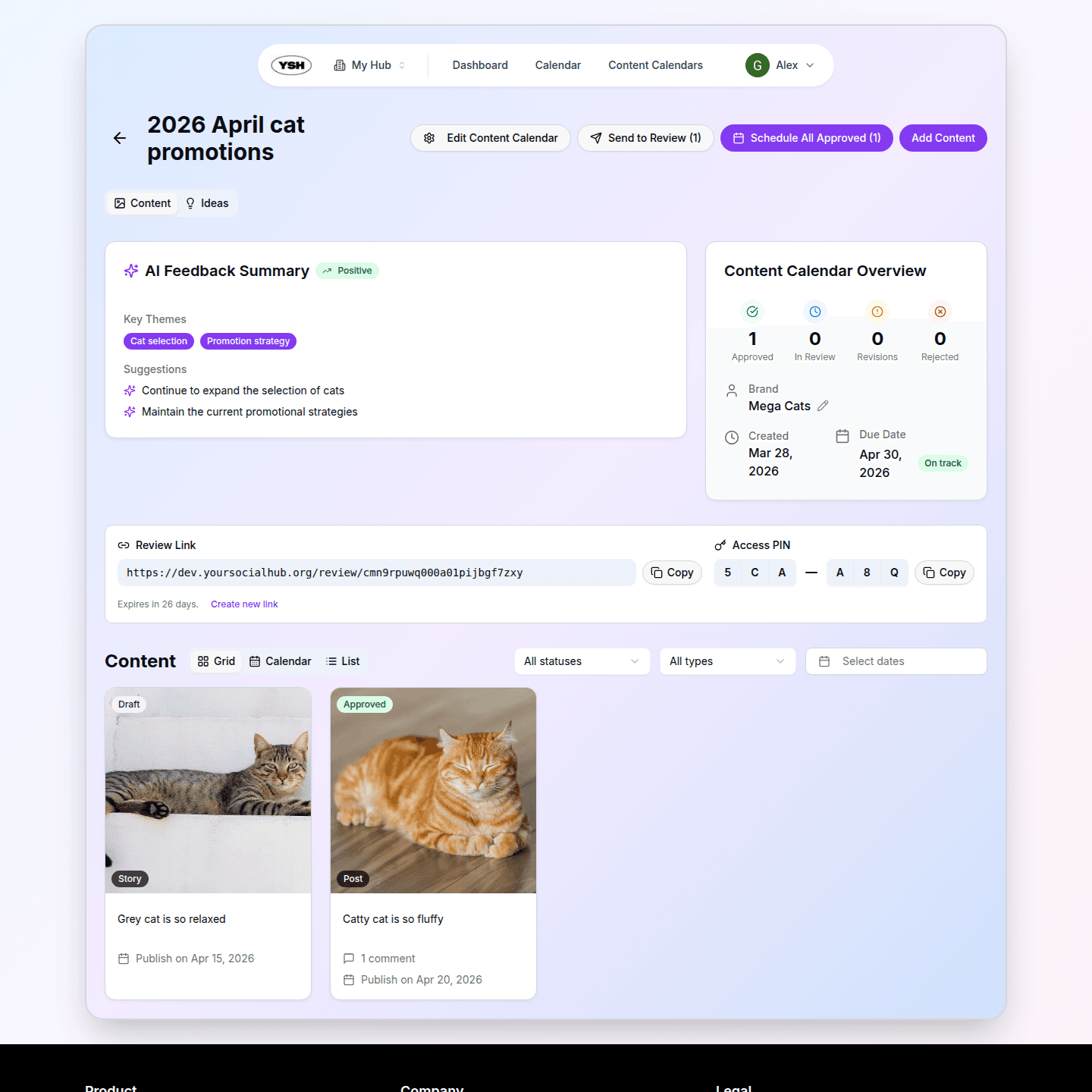
Step 2: Click "Add Content"
Click the Add Content button in the top right corner of the content calendar view.
Step 3: Fill in Content Details
Provide the following information:
- Name — A descriptive title for your content.
- Type — Select image, video, carousel, or story.
- Caption — The text that will appear with your post.
- Social Accounts — Select which social accounts this content will be published to (Facebook, Instagram, or both).
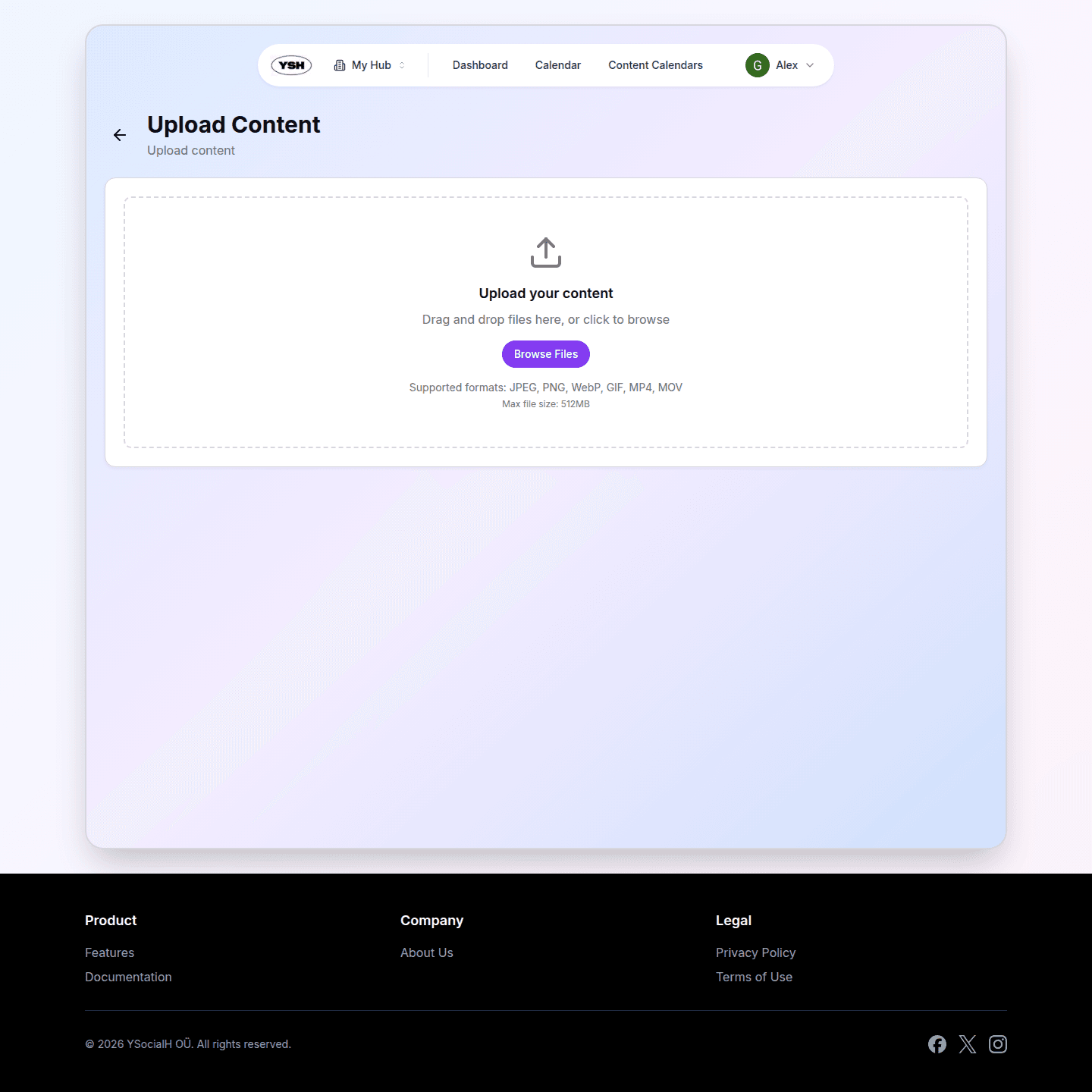
Step 4: Upload Media
Upload your image or video files. For carousel posts, you can upload multiple files. Drag and drop is supported, or click to browse your files.
Step 5: Save
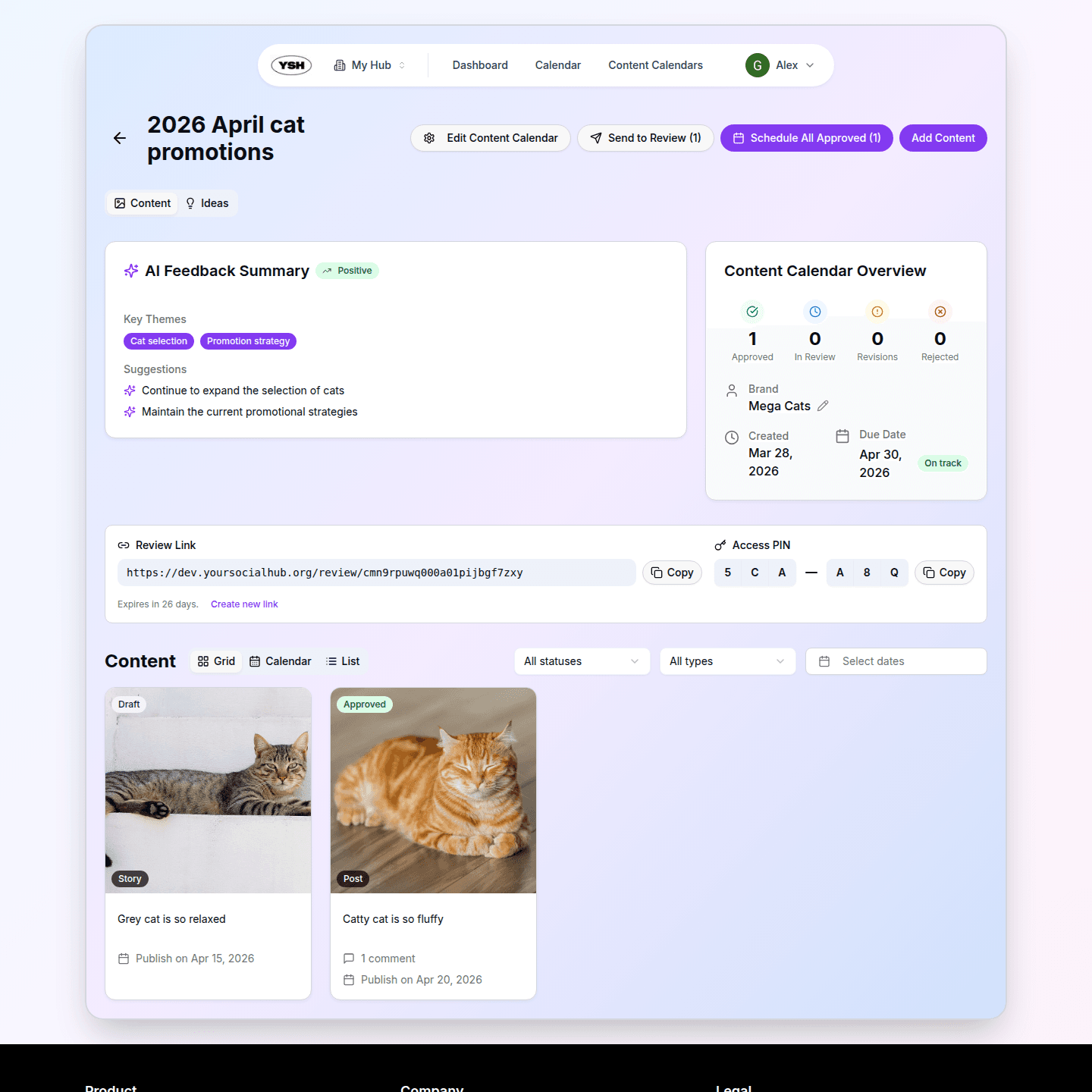
Click Save to create your content. It will appear in your content calendar with a Draft status.
Editing Content
Click on any content item to open it. You can edit the name, caption, media, and social account selection. Each edit creates a new version, so you can always see the content history.
Content Statuses
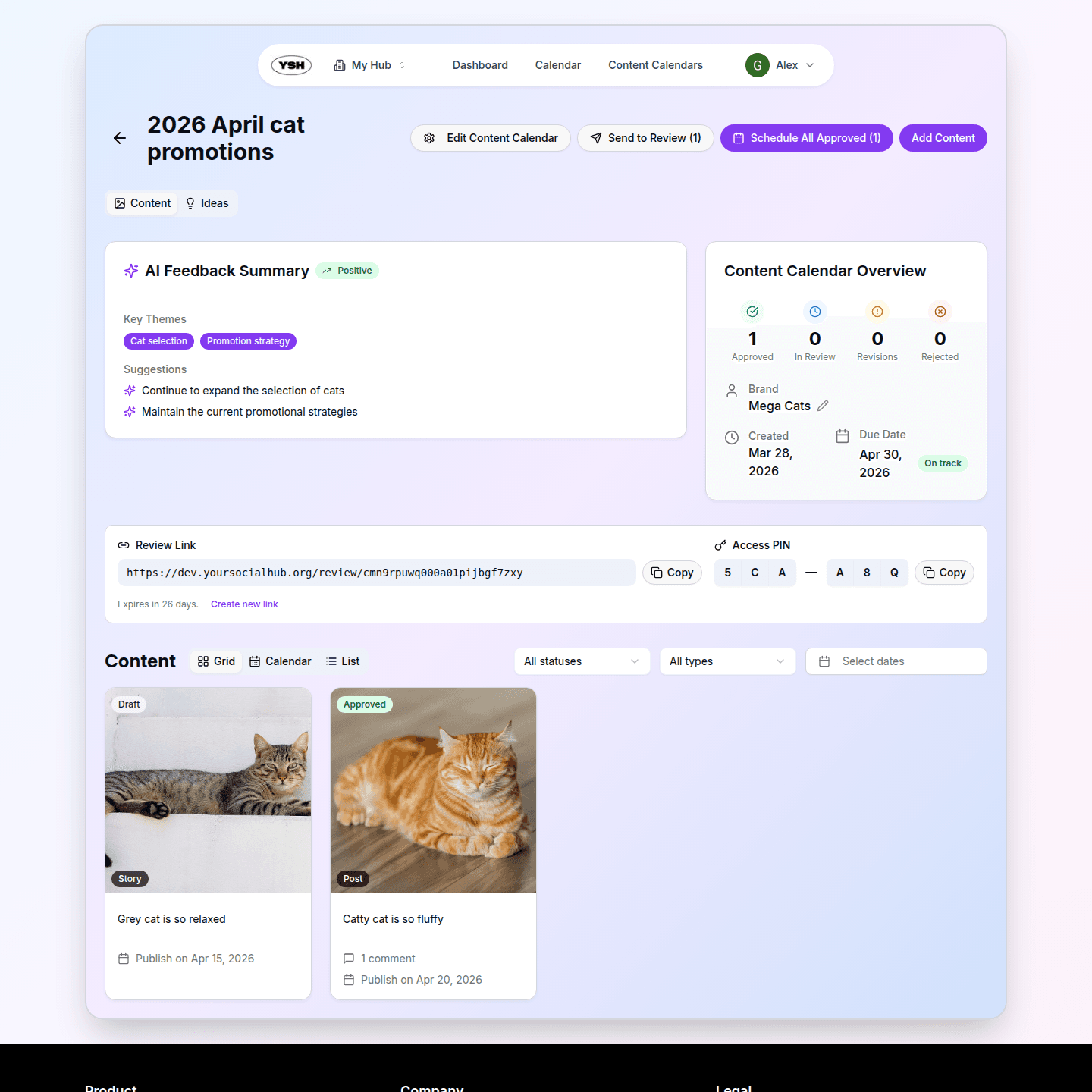
Every piece of content moves through these statuses:
- Draft — Initial state. Content is being created or edited.
- In Review — Content has been submitted for brand approval.
- Approved — Brand has approved the content.
- Revisions Needed — Brand has requested changes.
- Rejected — Brand has declined the content.
- Scheduled — Content is approved and scheduled for auto-publishing.
- Published — Content has been published to social platforms.
Next, learn how to submit content for review and manage the approval process.