
Scheduling & Publishing
After content is approved, you can schedule it for automatic publishing to Facebook and Instagram. YSH handles the publishing process for you.
Connecting Social Accounts
Before you can schedule content, you need to connect your social media accounts in Hub Settings. Go to Hub Settings and scroll to the Connected Social Accounts section. Only hub admins can connect and disconnect accounts.
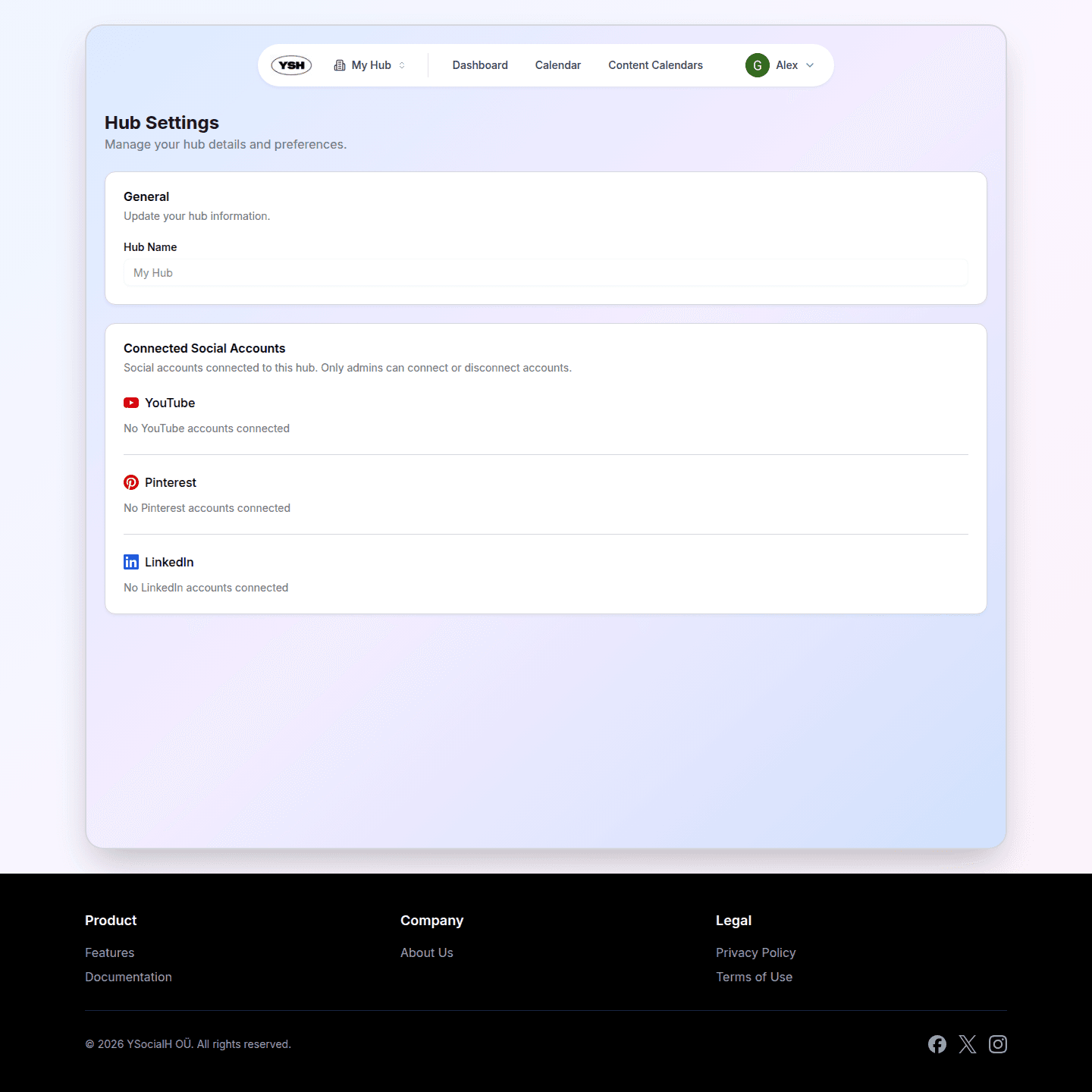
YSH currently supports auto-publishing to:
- Facebook Pages — Publish posts, videos, and carousels to your Facebook Page.
- Instagram Business — Publish images, reels, carousels, and stories to your Instagram Business account.
Click Connect next to a platform to start the OAuth flow. Once connected, the account appears in the list and can be selected when scheduling content.
Scheduling Content
Step 1: Approve the Content
Content must be in the Approved status before it can be scheduled. Make sure the brand has reviewed and approved it.
Step 2: Set a Publication Date and Select Social Accounts
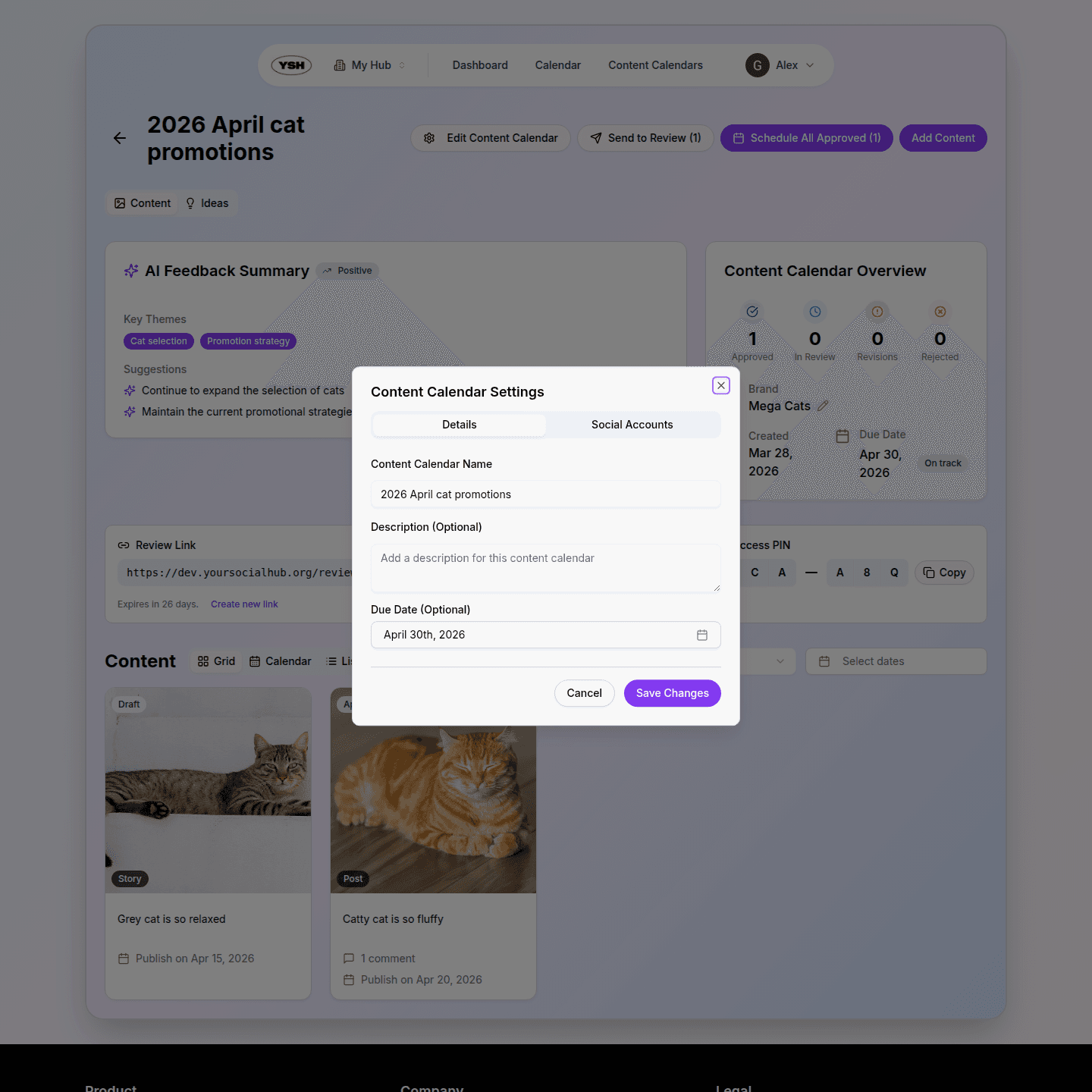
Open the content detail page and click Edit. In the edit dialog, set the publication date and time, and select which social accounts this content should be published to. You can publish to multiple accounts simultaneously — for example, both a Facebook Page and an Instagram Business account.
Step 3: Schedule
Once the publication date and social accounts are set, the Schedule button becomes available. Click it to confirm scheduling. The content status changes to Scheduled and it will appear in your content calendar on the scheduled date.
How Auto-Publishing Works
YSH checks for scheduled content every minute. When the publication time arrives:
- The system picks up the content and publishes it to all selected social accounts.
- Publication records are created for each account, showing whether the post was successful.
- Once all accounts are published successfully, the content status changes to Published.
Supported Post Types
| Platform | Post Type |
|---|---|
| Single photo, single video, carousel | |
| Single image, video/reel, carousel, story |
Managing Scheduled Content
You can manage scheduled content before the publication time:
- Reschedule — Change the publication date and time by editing the content.
- Cancel — Cancel the scheduled publication. The content returns to Approved status and can be edited again.
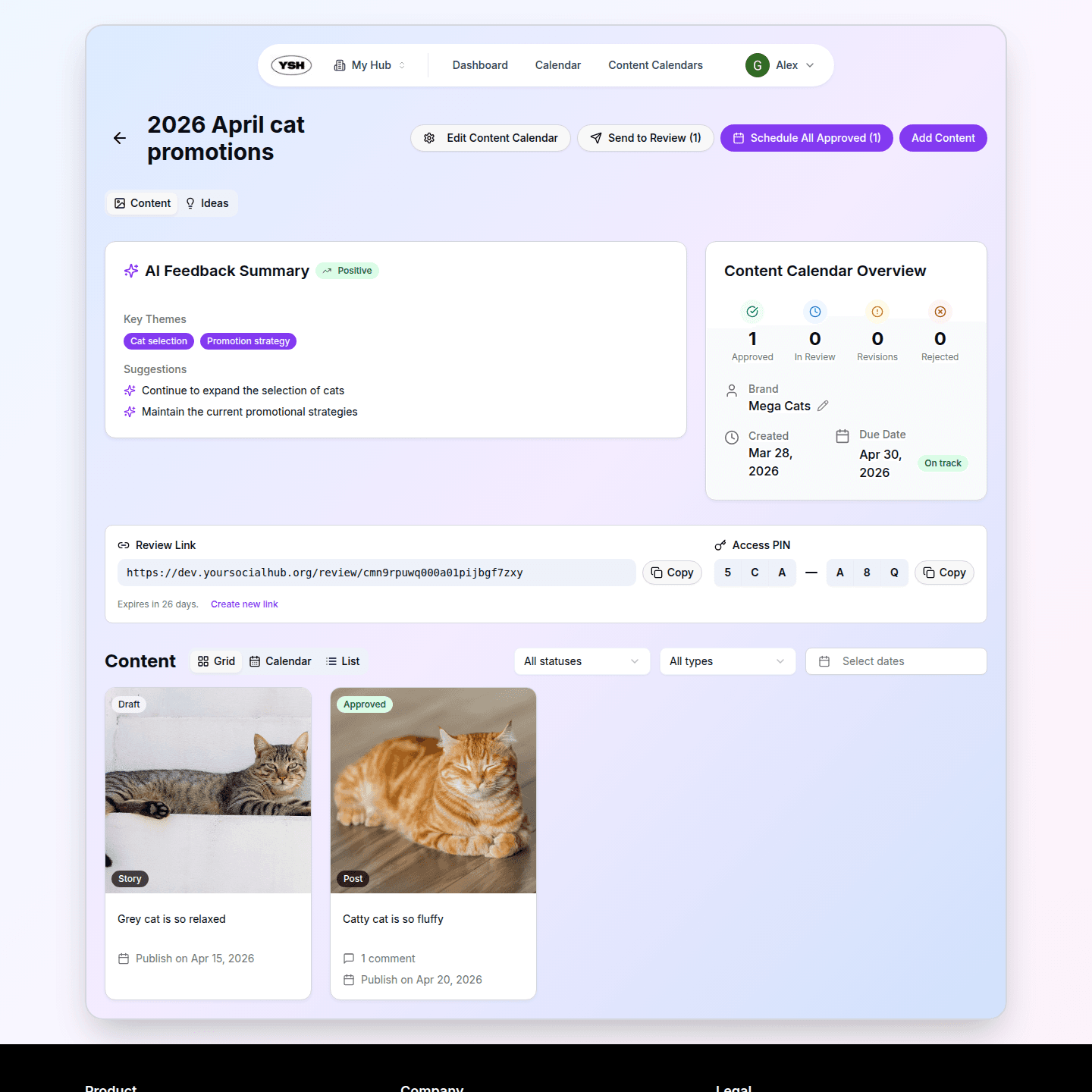
Next, learn how to organize your content using Content Calendars.